Bring Your Own IP
Oracle Cloud Infrastructure allows you to Bring Your Own IP (BYOIP) address space to use with resources in Oracle Cloud Infrastructure, in addition to using Oracle owned addresses.
BYOIP lets you manage your IPv4 CIDR blocks and IPv6 prefixes to align with your existing security, management, and deployment policies and achieve:
- Solution continuity and hardcoded dependencies: Your VCN is an extension of your public Internet presence, without needing to reinvent policies and management processes. If you have IP addresses hard-coded in devices or built architectural dependencies on specific IP addresses, using BYOIP you have a smooth migration to Oracle Cloud Infrastructure.
- IP pool management: Some network administrators require the ability to summarize groups of IPv4 addresses into pools and to create resources for deployment such as load balancers, firewalls, or web servers. IP Pool management provides tools to manage reserved public IPv4 addresses. IPv6 doesn't use IP Pool management.
- IP reputation: Some internet services rely on a contiguous IP address space (such as a full span of IP addresses from 1 through 255) and act as a trusted contact point between services such as major email service providers and mail delivery systems.
Oracle performs a validation process on imported IPv4 CIDR blocks or IPv6 prefixes, and after validation you're notified that they're available for advertisement. You can create one or many public IPv4 pools from this address space by specifying subranges from the BYOIP CIDR block and use IP pools to allocate specific resources. You can start or stop advertisement of the BYOIP routes when needed. IPv6 doesn't use IP pools, but you can similarly assign prefixes to VCNs and subnets.
Requirements and Preparation
If you plan to advertise your IP Prefix using your own ASN, imported through Bring Your Own ASN (BYOASN), you must create a Route Origin Authorization (ROA) with your RIR, using Oracle ASN (31898) and your own ASN.
- You must have ownership of the public IPv4 CIDR block or IPv6 prefix you want to import into Oracle Cloud Infrastructure, and the ownership must be registered with a supported Regional Internet Registry (RIR). Oracle validates ownership of your addresses. Only the following registries are supported, and the addresses must have a specified type or status:
- American Registry for Internet Numbers (ARIN) - "Direct Allocation" and "Direct Assignment" network types
- Réseaux IP Européens Network Coordination Centre (RIPE NCC) - "ALLOCATED PA," "LEGACY," "ASSIGNED PI," and "ALLOCATED-BY-RIR" allocation statuses.
- Asia-Pacific Network Information Centre (APNIC) – "ALLOCATED PORTABLE" and "ASSIGNED PORTABLE" allocation statuses.
- The addresses in the IP address range must have a clean history. We might investigate the reputation of the IP address range and reserve the right to reject an IP address range that contains an IP address that is associated with malicious behavior.
Limits and Quotas
- Your addresses can only be imported to a specific Oracle region.
- You can use BYOIP with an IPv4 CIDR block that's a minimum of /24 and a maximum of /8.
- An imported IPv6 prefix must be /48 or larger.
- You can't bring the same address range to more than one compartment at a time.
- You can bring up to 20 IPv4 CIDR blocks or IPv6 prefixes (or combination) to your Oracle Cloud Infrastructure account.
- You can assign up to five total IPv6 prefixes per VCN and up to three per subnet. You may assign IPv6 addresses from multiple prefixes to a VNIC if its subnet has multiple IPv6 prefixes assigned.
- BYOIP is not available with Oracle Cloud Infrastructure Free Tier, and must be requested for Pay As You Go services.
See IP Management Limits and Creating a Limit Increase Request for other limits-related information.
BYOIP Process Overview
The steps needed for BYOIP in Oracle Cloud Infrastructure require significant time, so plan accordingly. The process is shown in the following diagram:
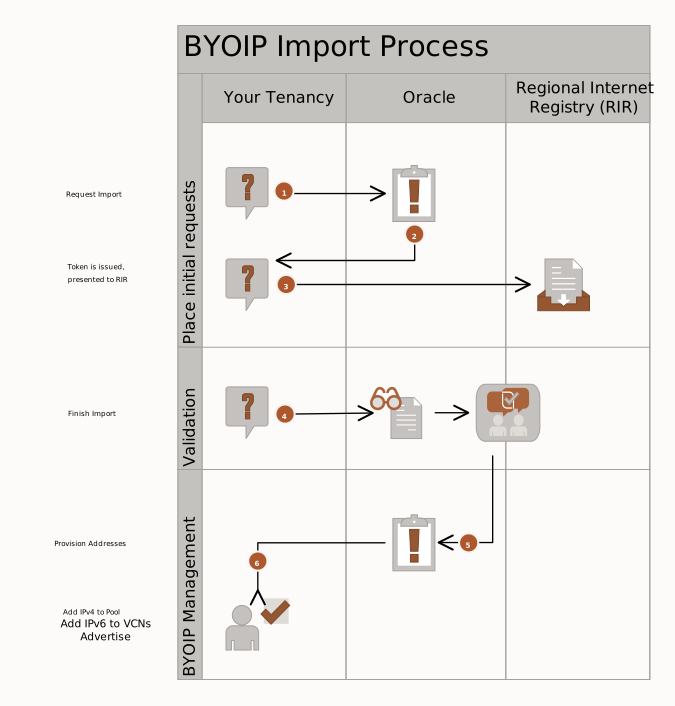
- Within a compartment in your tenancy, you request to import a public IPv4 CIDR block or IPv6 prefix you own.
- Oracle issues a verification token. (API users must modify their token. Console users get a completed token.)
- You add the verification token to the information about that public IPv4 CIDR block or IPv6 prefix kept by your RIR service. The details vary depending on the RIR. It can take up to one day for the update to take effect. If you move to the next step before that update takes effect, a day will be added to the total time to complete the process. See To import a BYOIP IPv4 CIDR block or IPv6 prefix for details.
- Create a Route Origin Authorization (ROA) with your RIR. As part of the ROA, provide the Oracle BGP ASN. Oracle's BGP ASN for the commercial cloud is 31898, except the Serbia Central (Jovanovac) region which is 14544. The ROA allows Oracle to advertise the BYOIP CIDR block.
- Request that Oracle finish the import request. This workflow takes up to 10 business days to complete, while Oracle communicates with the RIR and verifies that you own the IP addresses.
- Oracle provisions the BYOIP addresses to your compartment within your tenancy.
- At this point, the BYOIP IPv4 CIDR block or IPv6 prefix is yours to manage in your compartment. You can add IPv4 addresses to an IP pool, and then use them as reserved IP addresses. IPv6 prefixes don't use pools, and you can directly assign subdivisions to VCNs or the assign the entire IPv6 prefix to a VCN. You can also advertise the BYOIP CIDR Block or BYOIPv6 Prefix to the internet.
Required IAM Policy
To use Oracle Cloud Infrastructure, an administrator must be a member of a group granted security access in a policy by a tenancy administrator. This access is required whether you're using the Console or the REST API with an SDK, CLI, or other tool. If you get a message that you don't have permission or are unauthorized, verify with the tenancy administrator what type of access you have and which compartment your access works in.
For administrators: see IAM Policies for Networking.
Limits on IAM Resources
For a list of applicable limits and instructions for requesting a limit increase, see Limits by Service. To set compartment-specific limits on a resource or resource family, administrators can use compartment quotas.
Using the Console
- Confirm you're viewing the region you're interested in.
- Open the navigation menu and select Networking. Under IP management, select BYOIP.
- Select Import BYOIP CIDR block/prefix.
- On the Import BYOIP CIDR block/prefix page, enter the following information:
- A name for the BYOIP CIDR block/prefix.
- The compartment in which you want to create the BYOIP CIDR block/prefix, which could be different from the compartment you're working in.
- The IPv4 CIDR block or IPv6 prefix that you intend to bring to your tenancy.
- (Optional) In the Tags section, add one or more tags for the BYOIP CIDT block/prefix.
If you have permissions to create a resource, then you also have permissions to apply free-form tags to that resource. To apply a defined tag, you must have permissions to use the tag namespace. For more information about tagging, see Resource Tags. If you're not sure whether to apply tags, skip this option or ask an administrator. You can apply tags later.
- Select Import BYOIP CIDR block/prefix.
The details page for the BYOIP import requests appears.
- In the Next Steps section:
- Make a copy of the validation token. The token format depends on the IP version.
Format for an IPv4 CIDR block:
OCITOKEN::<cidrBlock>:<validationToken>Format for an IPv6 prefix:
OCITOKEN::<ipv6CidrBlock>:<validationToken>Note
Although the Console presents you with a token that's ready to submit, the API doesn't. API users need to manually modify the token as shown. - Add the validation token to the RIR account information associated with your address range. Each RIR uses a slightly different method:
- ARIN: Add the token string in the "Public Comments" section associated with your address range.
- RIPE NCC: Add the token string as a new "descr" field associated with your address range.
- APNIC: Add the token string to the "remarks" field for your address range by emailing it to helpdesk@apnic.net. The email must be sent from the APNIC authorized contact account for the IP address range.
Note
The validation token must be associated with the address range information. Don't add it to the information for the organization that owns the address range.
- Make a copy of the validation token. The token format depends on the IP version.
- Create a Route Origin Authorization (ROA) object that authorizes Oracle to advertise the BYOIP CIDR block. Oracle's BGP ASN for the commercial cloud is 31898, except the Serbia Central (Jovanovac) region which is 14544. For the US Government Cloud, see Oracle's BGP ASN. Set an expiry date at least 6 months in the future. Follow the instructions appropriate for your RIR:
- ARIN: ROA Requests
- RIPE NCC: Managing ROAs
- APNIC: Route/ROA management
Note
If you don't create an ROA, Oracle can't advertise the BYOIP IPv4 CIDR block or IPv6 prefix. Without being able to advertise the routes, there may be little point in importing them. - Wait until both the ROA and the token registration is complete (up to a day) before you select the Finish Import button (in the next step). Otherwise, the process can be delayed up to one day.
- Return to the details page for the BYOIP request and select View Details. A confirmation screen appears.
- On the Validation details page, select Finish Import, confirming that you want to validate the BYOIP request. Allow up to 10 business days for Oracle to contact your RIR, validate the import, and provision the CIDR block. View the work requests to see the status.Note
To associate your BYOIP CIDRs (IPv4/IPv6) with your own ASN instead of the OCI ASN, see Updating the Origin ASN.
- Confirm you're viewing the region and compartment you're interested in.
-
Open the navigation menu and select Networking. Under IP management, select BYOIP.
All the IPv4 CIDR blocks or IPv6 prefixes that you have imported are listed.
- Confirm you're viewing the region you're interested in.
- Open the navigation menu and select Networking. Under IP management, select BYOIP.
- Select the IPv4 CIDR blocks tab.
- Select Manage BYOIP CIDR block.
- In the Manage BYOIP CIDR block panel, select a BYOIP CIDR block.
- Select Add to public IP pool.
- In the Add to public IP pool panel, select the Select existing public IP pool option.
- Select the Public IP pool compartment and Public IP pool.
- After the BYOIP CIDR block is added to the public IP pool, select Close.
To successfully remove a BYOIP CIDR block from a public IP pool, there must be no reserved public IP addresses from that address range. You may have to delete one or more reserved public IP addresses.
- Confirm you're viewing the region you're interested in.
- Open the navigation menu and select Networking. Under IP management, select BYOIP.
- Select the BYOIP CIDR block.
- Select the corresponding to the subrange that you want to remove from the public IP pool, and then select Remove from Public IP Pool .
- Confirm the removal.
- Confirm you're viewing the region and compartment you're interested in.
- Open the navigation menu and select Networking. Under IP management, select BYOIP.
- Select the name of the BYOIP CIDR block or prefix you're interested in.
- On the details page, select the and then select Rename.
- Enter the new name. Avoid entering confidential information.
- Select Save Changes.
To successfully remove a BYOIP CIDR block from a pool, there must be no reserved public IP addresses in that address range. You may have to terminate one or more reserved public IP addresses. IPv6 prefixes don't use IP pools.
- Confirm you're viewing the region and compartment you're interested in.
- Open the navigation menu and select Networking. Under IP management, select BYOIP.
- Select the name of the BYOIP IPv4 CIDR block you're interested in.
- On the IPv4 CIDR blocks tab, select the corresponding to the subrange that you want to remove from a public IP pool, and then select Remove from public IP pool. A confirmation window appears.
- Confirm the removal.
To successfully delete a BYOIP CIDR block, it must be in the CREATING, PROVISIONED, ACTIVE, or FAILED state, and it must not have any subranges added to public IP pools. BYOIPv6 prefixes must not have any prefixes or subranges allocated to VCNs.
If you delete a BYOIP CIDR block, you need to repeat the import process to undo your action.
- Confirm you're viewing the region and compartment you're interested in.
- Open the navigation menu and select Networking. Under IP management, select BYOIP.
- Select the name of the BYOIP CIDR block you're interested in.
- On the details page, select the and then select Delete BYOIP CIDR block.
- Confirm the deletion.
A BYOIP IPv4 CIDR block or IPv6 prefix must be provisioned before it can be advertised.
The BYOIP CIDR block or IPv6 prefix is advertised using an Oracle-owned BGP ASN. Oracle's BGP ASN for the commercial cloud is 31898, except the Serbia Central (Jovanovac) region which is 14544.
- Confirm you are viewing the region and compartment you're interested in.
- Open the navigation menu and select Networking. Under IP management, select BYOIP.
- Select the name of the BYOIP IPv4 CIDR block or IPv6 prefix you're interested in.
- On the details page, select Advertise.
- In the confirmation window, select Advertise.
- Confirm you're viewing the region and compartment you're interested in.
- Open the navigation menu and select Networking. Under IP management, select BYOIP.
- Select the name of the BYOIP IPv4 CIDR block or IPv6 prefix you're interested in.
- On the details page, select Withdraw. A confirmation window appears.
- In the confirmation window, select Withdraw.Note
Withdrawing your prefix from advertisement by Oracle doesn't remove objects within Oracle systems services such as geolocation, RADB, and so on. To stop using a BYOIP prefix with an OCI tenancy, it's important to delete the BYOIP prefix along with the withdrawal of the prefix advertisement. If you don't delete the prefix, the geolocation changes associated with the prefix continue to exist in Oracle systems and services.
- Confirm you are viewing the region and compartment you're interested in.
- Open the navigation menu and select Networking. Under IP management, select BYOIP.
- Select the name of the BYOIP CIDR block you're interested in.
- On the IPv4 CIDR blocks tab, select Manage BYOIP CIDR block. The Manage BYOIP CIDR Blocks screen appears.
- Change the suffix number (often a /24) either by entering a number for the CIDR suffix or using the up and down arrows next to the suffix.
New rows in the table appear, representing possible subranges within the entire CIDR block.
- For each of the newly created subranges of the BYOIP CIDR block, select the checkbox in the first column of the table and then select Add to public IP pool.
- On the Add to public IP pool page, select one of the following options:
- Select an Existing Public IP Pool: Select an existing IP pool by using the selection list. Change the compartment if necessary.
- Create new public IP pool: Assign the new pool a name and select a compartment. You can move the public IP pool to another compartment later. Avoid entering confidential information.
- Select Add to public IP pool.
- On the Add to public IP pool page, select one of the following options:
- Repeat the previous step until all subranges of the BYOIP CIDR block are assigned to a public IP pool, then select Save changes.
If a subrange of a BYOIP CIDR block is left unassigned to a pool, the table may look different after you select Save changes.
- Confirm you're viewing the region and compartment you're interested in.
- Open the navigation menu and select Networking. Under IP management, select BYOIP.
- Select the name of the BYOIPv6 prefix you want to manage.
- On the IPv6 prefixes tab, select Manage BYOIPv6 prefixes.
- You can assign some or all a IPv6 prefix to a VCN. To assign the whole BYOIPv6 prefix to an existing VCN, select the VCN in the Virtual cloud network column.
- To assign some BYOIPv6 prefix to one VCN and some to a different VCN, change the prefix shown from the default /48. Groupings of address ranges appear on-screen and you can assign them to existing VCNs.
- Select Save changes when you're finished. Select Cancel if you haven't made any selections. Note
To save, you must assign at least one portion of the BYOIPv6 prefix to a VCN.
Using the API
For information about using the API and signing requests, see REST API documentation and Security Credentials. For information about SDKs, see SDKs and the CLI.
To manage the ByoipRange object, use these operations:
- AdvertiseByoipRange
- ChangeByoipRangeCompartment
- CreateByoipRange: see below for further details.
- DeleteByoipRange
- GetByoipRange
- ListByoipRanges
- UpdateByoipRange
- ValidateByoipRange
- WithdrawByoipRange
The following operations are specific to BYOIPv6:
After Creating a ByoipRange Object
After you have created a ByoipRange object, make a copy of its validationToken and either the ipv6CidrBlock or the ipv6CidrBlock of the ByoipRange. Using any text editor, create a token string in one of the following formats.
To import an IPv4 CIDR block:
OCITOKEN::<cidrBlock>:<validationToken>To import an IPv6 prefix:
OCITOKEN::<ipv6CidrBlock>:<validationToken>Present this modified validation token to your Regional Internet Registry (RIR) before you request validation.